


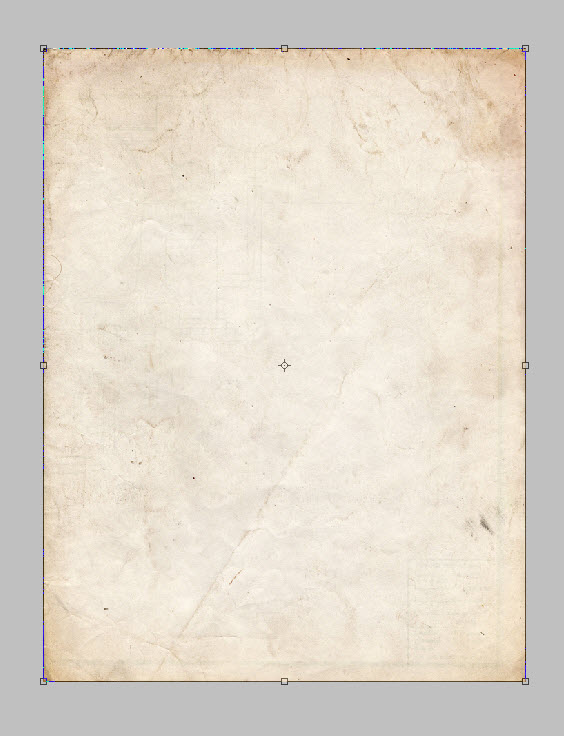
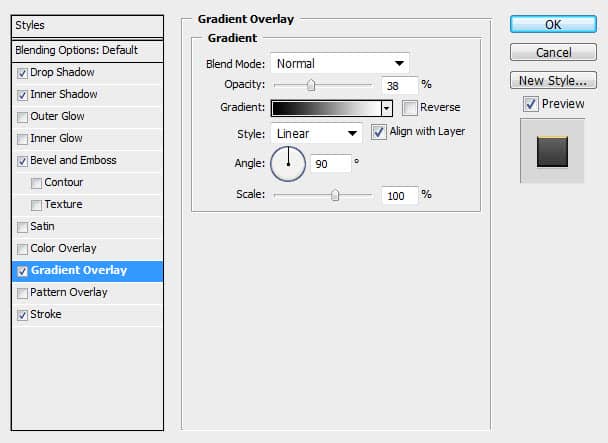
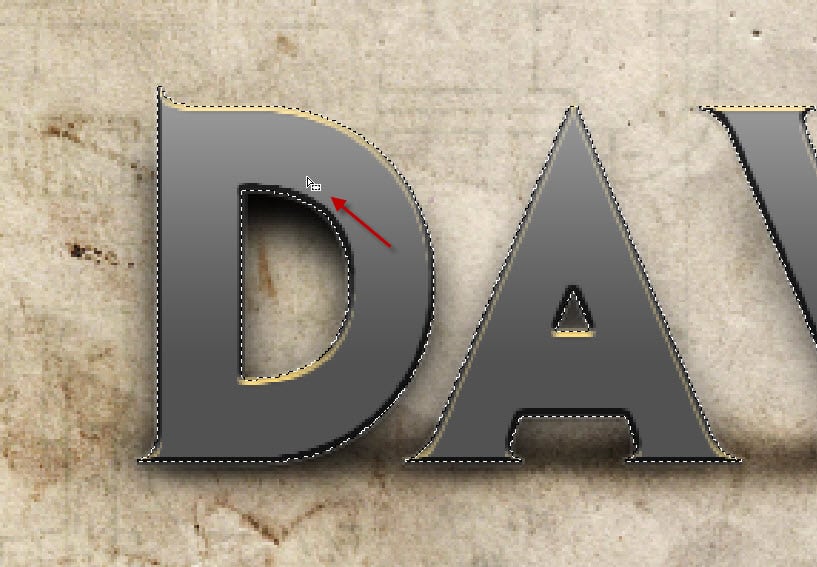
In this tutorial, In this tutorial, I will show you the steps I took to Design a Dawn of War Style Concrete Text Effect in Photoshop. I try to break this tutorial down into some fine details and hopefully will give beginners some ideas of how to apply textures to font, plus masking and image adjustments. Have a try! This text effect is inspired by the Dawn of War game box art. If you’re having difficulty with the steps in this tutorial, I suggest you go to the basic section of PSD Vault and practice those tutorials first, then come back and do this one. Using these methods, you’ll be able to enhance your designs for postcards and other print marketing materials. Here is a preview of the final effect: (click to enlarge) Ok Let’s get started! To complete this tutorial, you will need the following stock: Create a new document size 720px * 900px, load the paper texture into Photoshop, hit Ctrl + A to select the entire texture and copy it, paste it onto our document and resize it to fit: We will be adding a few image adjustment layers for this texture to darken it a bit. You can find those commands under Layer > New Adjustment Layer: Hue Saturation Levels Mask on Levels Adjustment layer Curves and here is the effect so far: Use the font we downloaded to type some text on the canvas: Apply the following layer blending effect to the text layer: Drop Shadow Inner Shadow Bevel and Emboss Gradient Overlay Stroke and here is the effect so far: As you can see, because this bevel effect we added, the text has a nice shinning finish on top: Now we will add some shadow for the text. Firstly Ctrl + Left-click the thumbnail of the text layer to load its selection: You will see the marching ants around the text: Create a new layer under the text layer, fill the selection with black colour ON THIS NEW LAYER: Apply the following Gaussian Blur settings to this shadow layer: After the blur, move this shadow layer a little lower: and you have a nice shadow under the letter: Erase the top right of the shadow with a soft eraser as we don’t really need it: Duplicate this shadow layer once and compress it down with Free Transform tool, this will form some shadow under the text. Adjust the layer opacity to around 50% for better effect: and here is the effect so far: Now use the previous method described, load the selection of the text layer again: Click on the Rectangular Marquee Tool, then move your mouse over the selection, you will see the mouse shape change into something like below: Click and drag the selection onto the concrete texture: Copy and paste the selected texture onto the text: Add the following two adjustment layers as clipping mask on the texture layer: Black and White Curves and here is the effect so far: We’re almost done. For some final touches, we can add some adjustment layers on top of all layers: Black and White Mask on Black and White adjustment layer: Levels Selective Color Mask on Selective Color layer: and I have the following final effect: (click to enlarge, I added some splatter brush to the image to spice it up a bit.) That’s it for this tutorial! Hope you enjoy this tutorial and find it useful! Till next time, have a great Step 1
Step 2
Step 3
Step 4
Step 5
mercredi 30 mars 2011
Design a Dawn of War Style Concrete Text Effect in Photoshop
Posted by SigmaTuto on 18:19. - No comments







0 commentaires:
Enregistrer un commentaire